
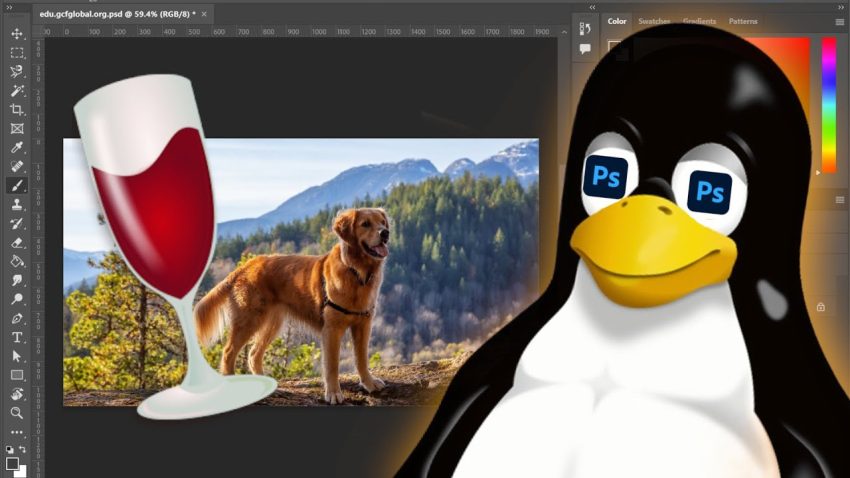
For a long time, moving from Windows to Linux felt like a trade-off. While Linux is fantastic for programming, server management, and recently even gaming thanks to Valve’s efforts, it has always struggled in one specific area: creative software. Many of you might want to switch to Linux for its speed and security but feel stuck because industry-standard tools like Adobe Photoshop are not natively supported. However, that situation is changing rapidly. In this lesson, we are going to explore a technical workaround that allows you to run the professional version of Adobe Photoshop right on your Linux desktop using the power of Steam and a special compatibility tool.
To understand why this is a challenge, we must look at the software landscape. While there are excellent open-source alternatives like Kdenlive for video editing or GIMP for image manipulation, they are not always sufficient for professional environments. If you plan to work at a design firm, your colleagues will likely use Adobe Creative Cloud. Sharing files between GIMP and Photoshop can result in broken layers, lost smart objects, and general incompatibility. Furthermore, unlike Microsoft Office, which can be run effectively in a web browser, Adobe’s software is far too resource-intensive to run smoothly over the internet. Consequently, creative professionals have often been forced to dual-boot Windows or avoid Linux entirely.
The solution lies in a piece of software called Wine. Wine acts as a compatibility layer that translates Windows API calls into POSIX calls that the Linux operating system can understand. You might already be familiar with Proton, which is Valve’s modified version of Wine used to make thousands of games run smoothly on the Steam Deck and Linux desktops. In fact, running software through Wine can sometimes offer better performance than on Windows because the Linux operating system uses fewer background resources. To get Photoshop working, we cannot use the standard version of Wine because it updates too slowly. Instead, we need to use a custom “bleeding edge” version created by a community developer specifically to support Adobe products.
The first step in this process is to acquire the necessary tools. You will need to download the “bleeding-edge-local” archive from the developer’s GitHub release page. Simultaneously, you must ensure that the Steam client is installed on your computer. We are using Steam not for gaming, but because it provides an excellent interface for managing Wine prefixes, which acts as a container for the Windows software. On distributions like CachyOS, Steam comes pre-bundled, but you can install it easily on any version of Linux. Once you have downloaded the custom Wine archive, you need to place it in a specific hidden folder. Navigate to your Home directory, enable the view of hidden files, and follow the path to .local, then share, Steam, and finally compatibilitytools.d. You will extract the downloaded folder directly into this directory. After unzipping the file, you must restart Steam so it recognizes this new compatibility tool.
Now that the environment is set up, you need the installation media for Photoshop. For this example, we are discussing the 2021 version, as it currently has the highest stability rating with this method. Usually, this comes in the form of an ISO file. On Linux, we need to “mount” this file so the computer treats it like a physical disc inserted into a drive. You can do this via the command line using the sudo mount command, pointing it to a created directory in your /mnt folder. Once mounted, you will see an executable file, likely named autoplay.exe or setup.exe.
We will now add this installer to Steam. Inside the Steam application, navigate to the “Games” menu and select “Add a Non-Steam Game to My Library.” Browse to the location where you mounted the ISO and select the executable file. Once it appears in your library, right-click it and select “Properties.” This is the most critical step: navigate to the “Compatibility” tab, check the box to force a specific compatibility tool, and select the “bleeding-edge-local” version you installed earlier. This tells Steam to use our custom-patched Wine version to run the installer. You can now click “Play” to launch the Adobe installer, and it should proceed exactly as if you were on a Windows computer.
After the installation is complete, you will launch Photoshop through Steam just like you did the installer. You might notice that the application takes a moment to load, as it is a large program. Once open, you will find that hardware acceleration and even complex features work surprisingly well. If you are using the X11 display server—which is common on desktop environments like XFCE—features like drag-and-drop will function perfectly. If you are on Wayland, you might experience minor limitations, but the core functionality remains intact. You can use layers, the pen tool, and filters just as you would on a native Windows machine.
Finally, it is vital to understand how to save and export your work. Wine creates a virtual “C: drive” inside your Steam folder to trick Photoshop into thinking it is on Windows. If you save a file to the “Desktop” inside Photoshop, it is saving it deep inside a hidden folder structure within your Linux system, specifically in the steamapps/compatdata directory. To save files to your actual Linux Documents or Pictures folder, you need to navigate to the “Z: drive” within the Photoshop “Save As” dialog. The Z: drive maps directly to your Linux root directory, allowing you to access your home folder and save your JPEGs or PNGs exactly where you want them.
By following these steps, you have effectively bridged the gap between professional creative requirements and the freedom of the Linux operating system. You no longer have to choose between a secure, efficient operating system and the industry-standard tools required for your work. While the setup requires some initial effort with file management and terminal commands, the result is a stable, fully functional version of Photoshop running on your terms. I encourage you to try this method and explore how much more productive you can be when you have the power of Linux combined with the creative suite you already know.
via Youtube: https://youtu.be/aaTvRDsdy0s