

Clipchamp is a versatile, web-based video editing application integrated into the Windows ecosystem, designed to help creators produce high-quality content with ease. It allows users to trim videos, add filters, and utilize a vast library of stock assets, but because many of its features rely on cloud synchronization, a stable internet connection is mandatory. When the software displays a message saying it cannot detect a connection, it effectively locks you out of your projects, preventing you from downloading essential templates or exporting your final edits. Understanding how to resolve this issue is crucial for anyone who relies on this tool for their creative workflow.
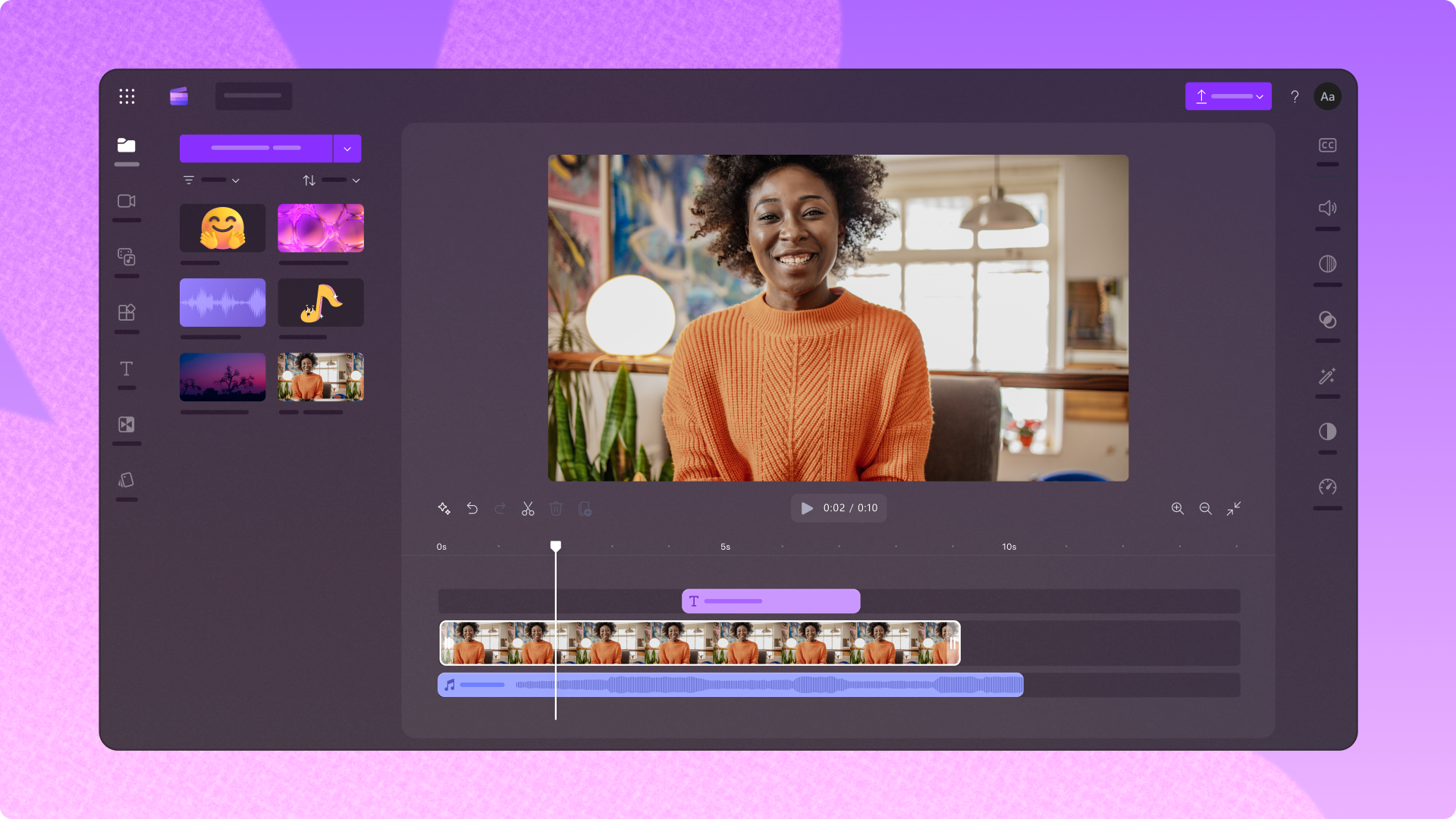
To begin with, you should always verify the basic stability of your internet connection. Clipchamp requires a consistent data flow to communicate with its servers, and even a brief interruption can cause the software to trigger an error. You can check this by opening a web browser and visiting a heavy website or running a speed test. If your connection seems slow or intermittent, try restarting your router by unplugging it for thirty seconds and then plugging it back in. Sometimes, simply switching from a wireless Wi-Fi connection to a wired Ethernet cable can provide the stability needed for the app to function properly. If you suspect a deeper network configuration issue, you can use the built-in Windows network troubleshooter located in your system settings to identify and fix common connectivity problems automatically.
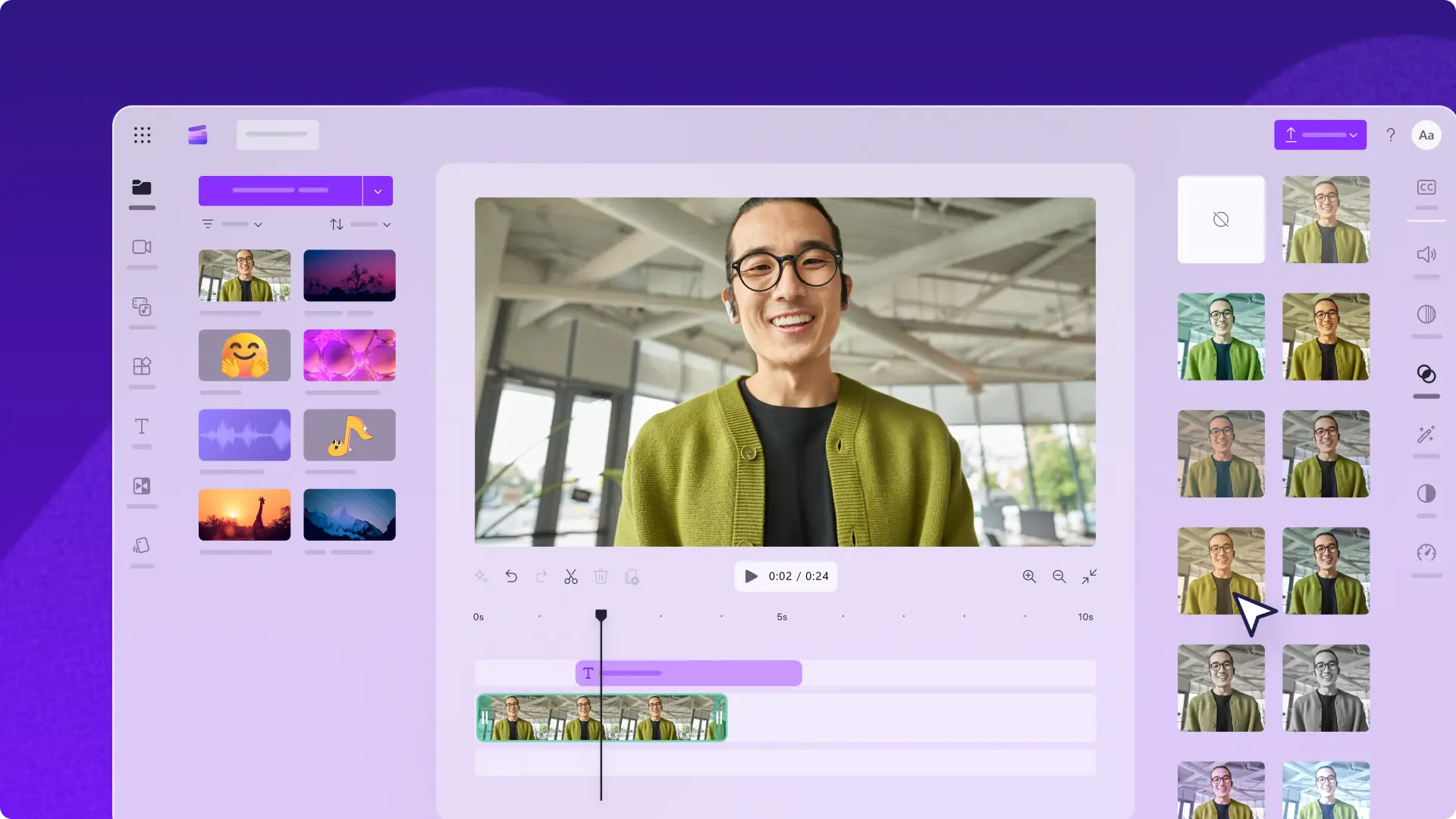
If your internet is working for other apps but not for Clipchamp, the next logical step is to perform a full restart of both the application and your computer. Software glitches are often temporary and can be cleared by closing all background processes. Make sure you completely exit Clipchamp by checking your system tray or task manager to ensure no remnants of the program are still running. After closing it, restart your Windows device to refresh the system memory and clear any minor software conflicts. Many users find that a simple reboot allows the application to re-establish its handshake with the remote servers, clearing the connection error immediately without further intervention.
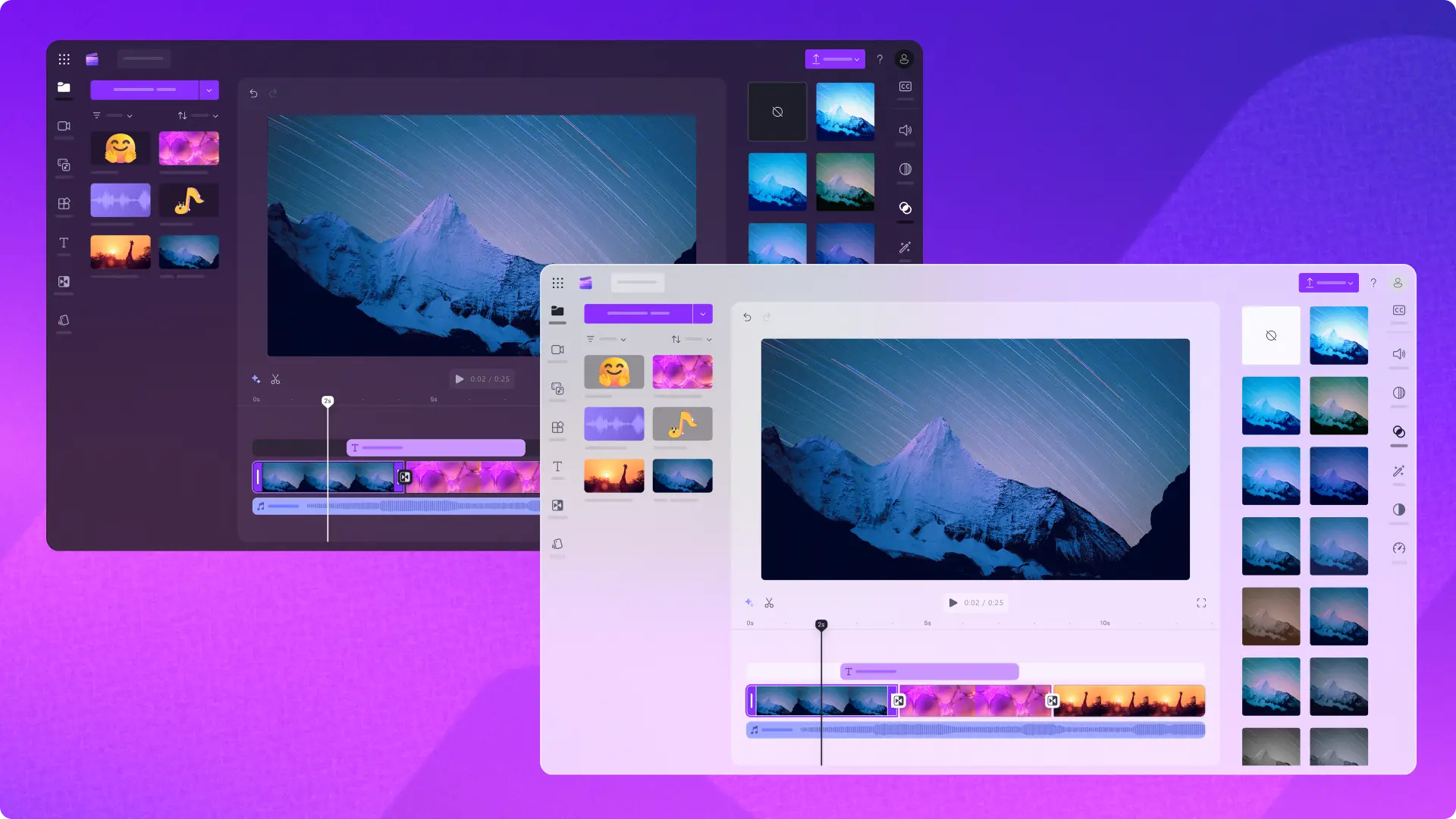
Keeping your software updated is another vital part of maintaining a smooth experience. An outdated version of Clipchamp might contain bugs that prevent it from recognizing modern security protocols or server updates. You should visit the Microsoft Store and check the “Library” section to see if there is an update waiting for Clipchamp. Similarly, your operating system plays a huge role in how applications handle internet traffic. Ensure that Windows is fully updated by going to the settings menu and checking for any pending security patches or feature updates. Installing these updates often includes fixes for network drivers and system certificates that Clipchamp relies on to stay online and secure.
Sometimes, the security software meant to protect your computer can be a bit too aggressive. Windows Firewall or third-party antivirus programs might mistakenly flag Clipchamp’s data requests as suspicious, blocking its access to the internet entirely. To test this, you can temporarily disable your firewall or antivirus and see if the connection error persists. If Clipchamp works while the security software is off, you should add an exception for the app within your security settings. This ensures that the editor can pass through the firewall while keeping the rest of your system protected. Specifically, look for the “Allow an app through firewall” setting in the Windows Security dashboard and ensure that both private and public boxes are checked for Clipchamp.
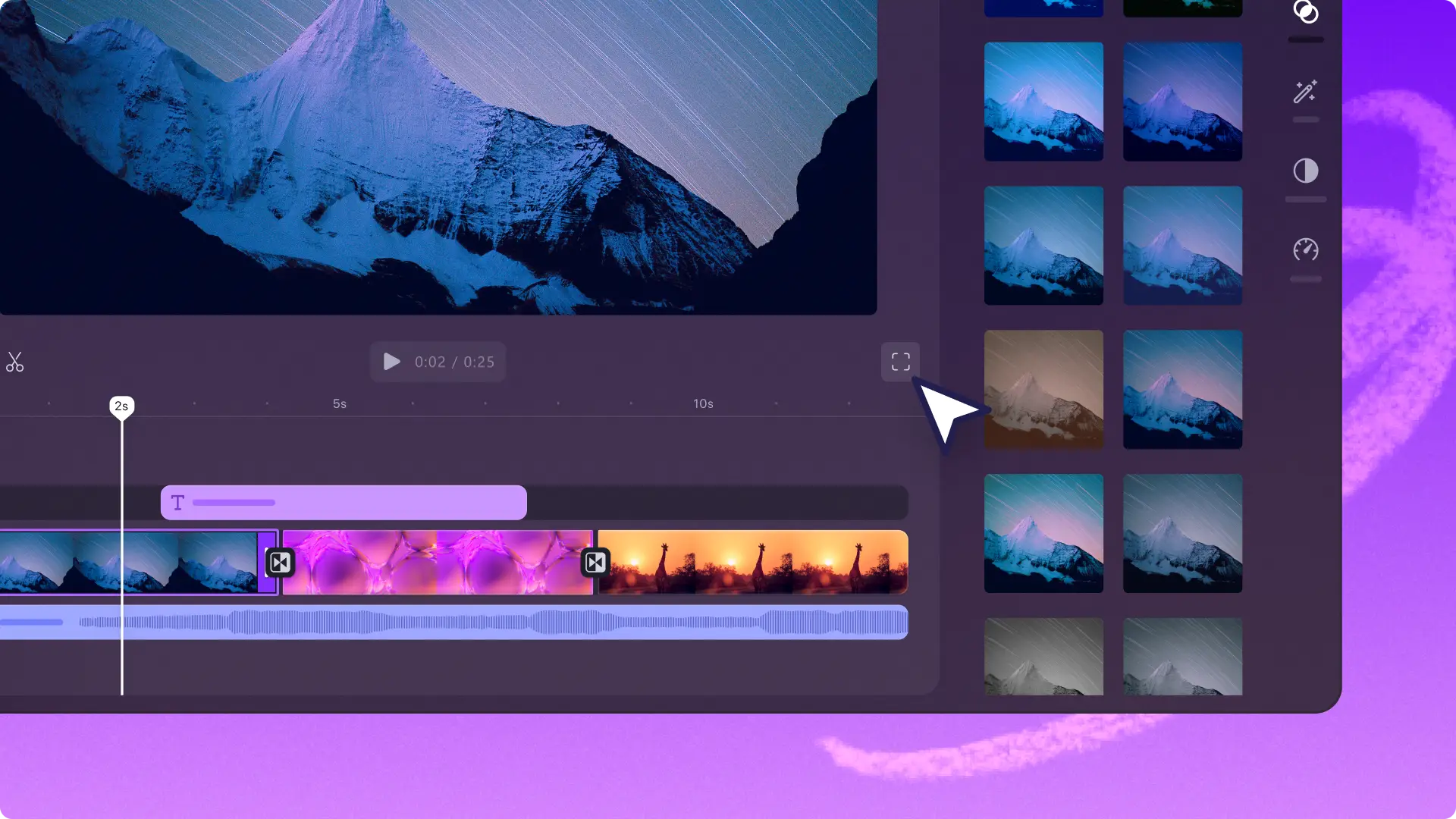
If the problem continues, it may be due to a corrupt installation or local cache data. When you use Clipchamp, it stores temporary files on your hard drive to speed up performance. Over time, these files can become corrupted and cause the “no internet” message. You can try resetting the app through the Windows “Apps and Features” menu. By selecting Clipchamp and choosing the “Reset” option, you clear its local data without deleting your cloud-saved projects. If a reset does not work, a clean reinstallation is the next best choice. Uninstall the application, restart your computer, and then download the latest version from the official Microsoft Store. This ensures you have a fresh start with all the correct configuration files.
Configuration settings like proxies or VPNs can also interfere with how Clipchamp detects your network. Many professional and personal networks use proxy servers for privacy or security, but these can sometimes block the specific ports needed by video editing software. Navigate to your internet options in the control panel and check the LAN settings to ensure that the “Use a proxy server” box is unchecked unless it is absolutely necessary for your work environment. Additionally, if you are using a VPN, try turning it off or switching to a different server location. Some VPN regions might have restricted access to Microsoft services, which could lead to the connectivity issues you are experiencing.
Another technical detail to check is your network profile type. Windows distinguishes between public and private networks to determine what kind of traffic is allowed. If your home network is incorrectly set to “Public,” Windows might impose stricter limitations on how apps like Clipchamp connect to the web. You can change this by going to your network settings and switching your current connection to “Private.” This tells the operating system that you trust the network, allowing applications to communicate more freely with external servers. It is a small change that often resolves deep-seated connectivity bugs that other troubleshooting steps might miss.
Finally, if you have exhausted all these options and still cannot get Clipchamp to recognize your internet, it is time to contact official support. The Clipchamp support team can look into whether there are specific server outages in your region or if there is a unique conflict with your hardware. When reaching out, it helps to provide them with your Windows version number and a list of the troubleshooting steps you have already tried. They may offer advanced solutions or manual patches that can get your creative projects back on track. By methodically working through these steps, you can overcome the frustration of connection errors and return to making great videos.