
Remote access to virtual machines (VMs) is essential for developers, IT professionals, and system administrators. This guide explains how to connect to a VM using PuTTY or MobaXterm, two popular SSH clients. Whether you’re troubleshooting, managing servers, or working on cross-platform projects, these tools provide secure and efficient remote access. The process involves configuring the VM, setting up SSH, and using the appropriate software to establish a connection.
Virtual machines operate as isolated environments on a physical host. To access them remotely, the host must allow SSH connections. SSH (Secure Shell) is a cryptographic network protocol that enables secure communication over unsecured networks. It uses port 22 by default, but this can be customized. Before proceeding, ensure the VM’s firewall allows traffic on the chosen port and that SSH is installed and running.
PuTTY is a free, open-source terminal emulator and SSH client for Windows. It supports various protocols, including SSH, Telnet, and Rlogin. To use PuTTY, launch the application, enter the VM’s IP address or hostname, and specify the port (usually 22). Click ‘Open’ to initiate the connection. You will be prompted to enter the username and password for the VM. If the connection fails, verify the IP address, port, and SSH service status on the VM.
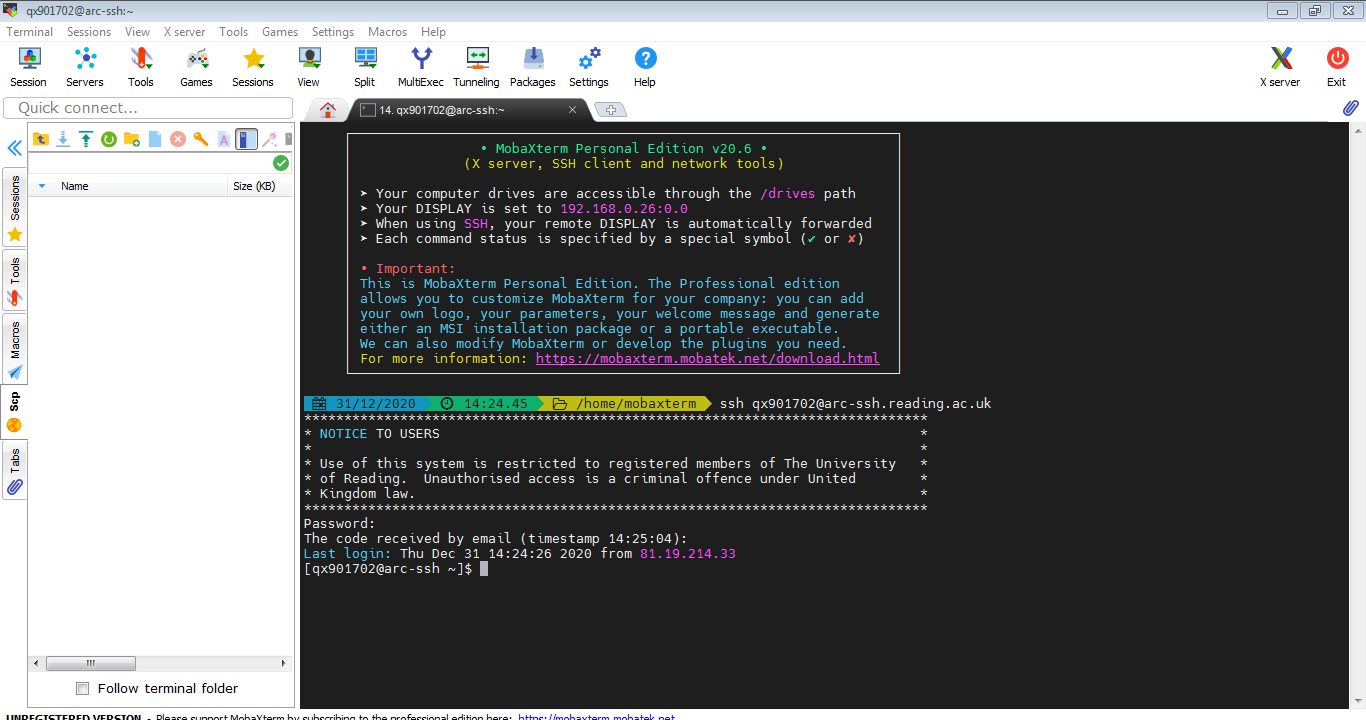
MobaXterm is another powerful tool that combines an SSH client with a terminal emulator, X11 server, and other utilities. It offers a more feature-rich interface compared to PuTTY. To connect via MobaXterm, open the application, navigate to the ‘SSH’ tab, input the VM’s IP address, port, and username. Click ‘OK’ to establish the connection. MobaXterm automatically handles key authentication if configured, making the process faster. If you encounter issues, check the VM’s SSH configuration and network settings.
Both tools require the VM to have a static IP address or a consistent hostname. If the VM’s IP changes frequently, consider using a dynamic DNS service or configuring the host’s network settings to assign a fixed IP. Additionally, ensure that the VM’s SSH daemon is configured to accept remote connections. Edit the SSH configuration file (usually located at /etc/ssh/sshd_config) to set ‘PermitRootLogin’ to ‘yes’ if root access is needed, and restart the SSH service afterward.
Security is a critical aspect of remote access. Use strong passwords, enable two-factor authentication (2FA), and limit SSH access to trusted IP addresses. Regularly update the SSH server and client software to address vulnerabilities. Avoid using default credentials and disable unnecessary protocols to minimize attack surfaces. If you’re connecting over the internet, consider using a virtual private network (VPN) or a secure tunnel to protect the connection.
Testing the connection is essential after setup. Use the ‘ping’ command to verify network reachability between the host and the VM. If the ping fails, check the firewall settings on both the host and the VM. Once connectivity is confirmed, use SSH commands like ‘ssh username@ip_address’ to establish a session. If the connection is successful, you’ll see a terminal prompt for the VM. If not, review the SSH logs on the VM for error messages.
For advanced users, configuring SSH keys can enhance security and convenience. Generate an SSH key pair on the host machine using ‘ssh-keygen’, then copy the public key to the VM’s authorized_keys file. This allows passwordless login, which is useful for automated scripts or frequent access. Ensure the permissions for the .ssh directory and authorized_keys file are set correctly (chmod 700 for the directory and chmod 600 for the file).
Troubleshooting common issues is part of the process. If the connection times out, check the network latency and ensure the VM’s SSH service is active. If authentication fails, confirm the username and password are correct, and check if the account is locked or expired. If the SSH port is blocked, try changing the port in the VM’s configuration and update the client settings accordingly. Always keep the software updated to avoid compatibility issues.
Remote access to VMs is a fundamental skill for managing distributed systems. By mastering PuTTY and MobaXterm, you can efficiently monitor, configure, and maintain virtual environments. Whether you’re a beginner or an experienced user, these tools offer flexibility and security. Experiment with different configurations, explore advanced features, and stay informed about best practices to optimize your workflow.