
Freeform Rotate is a modern feature in the Windows 11 Paint application that allows you to rotate images or selections at any specific angle. Unlike the previous versions that restricted you to fixed 90-degree turns, this tool provides total flexibility to adjust your visual content with much higher precision.
For a very long time, Microsoft Paint was known for its simplicity, which often felt like a limitation. If you wanted to tilt an image just a little bit, you usually had to move to more complex software. However, with the latest updates in Windows 11 (specifically the 22H2 update), Microsoft finally introduced Freeform Rotate. This feature basically means you are no longer stuck with horizontal or vertical flips.
This tool is a big deal for those of you who frequently handle quick image edits. It allows for a more natural manipulation of photos and illustrations. Technically, the feature works by using a slider or a manual input that lets you decide the exact degree of rotation. This is particularly useful for designers or even casual users who need to align a photo to match the horizon or fit a logo into a specific layout. While it doesn’t make Paint a full rival to Photoshop, it certainly bridges the gap for everyday tasks.
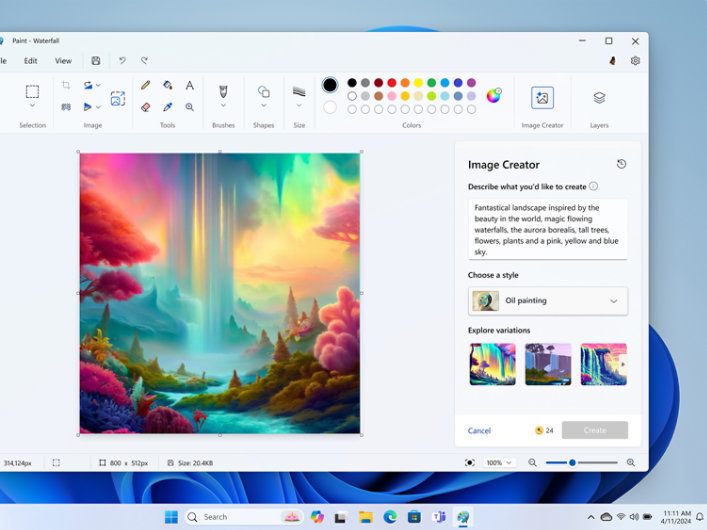
If you are wondering how to actually use this new capability, you can follow these simple steps to get started:
- Open the Paint App: Make sure you have updated your Windows 11 to the 22H2 version. You can check this in your System Settings under Windows Update to ensure the latest features are active.
- Select Your Image: Open the file you want to edit or paste an image onto the canvas. Use the “Select” tool to highlight the specific part of the image you want to tilt, or just leave it as is to rotate the whole thing.
- Locate the Rotate Tool: Look at the top toolbar in the “Image” section. You will see the rotation icon that you usually use for 90-degree turns.
- Choose Freeform Rotate: Within that menu, you will now see an option for free-form rotation. Once selected, a slider or a handle will appear.
- Adjust the Angle: You can now move the slider to the left or right. As you move it, you will see the image rotate in real-time. You can stop once you find the perfect angle that fits your needs.
- Save Your Work: Once you are satisfied with the alignment, click anywhere outside the selection to set it, and don’t forget to save your project.
This update shows that Microsoft is listening to user feedback. Even though it is a small addition, it significantly improves the creative workflow. You can now fix crooked photos or create slanted text effects without needing to download third-party applications. It is all about making the built-in tools more versatile and accessible for everyone.
In conclusion, the Freeform Rotate feature is a long-awaited improvement that brings a touch of professional control to a classic application. It effectively removes one of the most frustrating barriers in basic image editing. If you often find yourself needing to align objects precisely but don’t want the headache of learning professional design software, this tool is definitely for you. I recommend that you double-check your Windows version and try it out immediately to see how much easier your editing process becomes. Thank you for taking the time to read this explanation, rekan-rekanita. Hopefully, this insight helps you maximize the tools already available on your PC.