

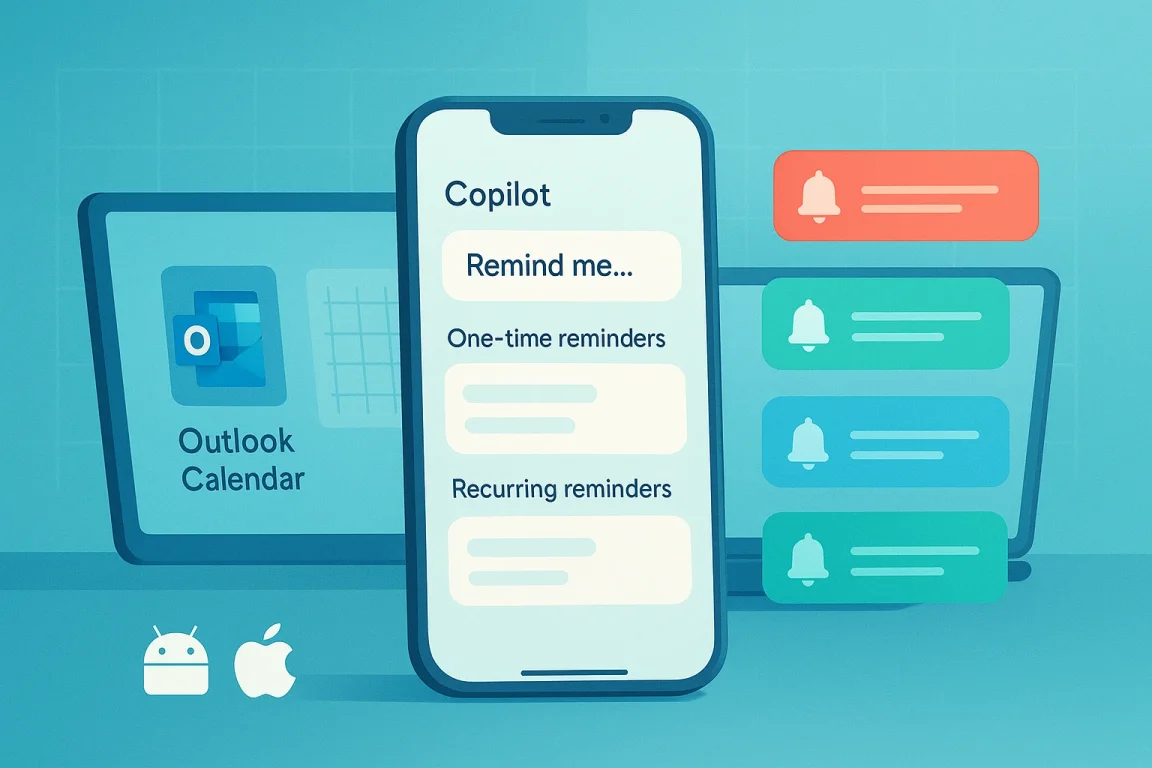
Microsoft Copilot, the helpful AI assistant built into Windows 11 and other Microsoft products, just got a whole lot more useful! It’s now got a fantastic new feature: Reminders. This means Copilot can remind you of things, and even better, it can send those reminders to your phone – whether you have an Android or an iPhone! Let’s dive into how this works and why it’s a big deal.
What are Microsoft Copilot Reminders?
Essentially, Reminders lets you tell Copilot to remind you about something at a specific time or place. Think of it like a super-smart digital sticky note. You can ask Copilot to remind you to “buy milk at 6 PM” or “call Mom when I get home.” The cool part is that Copilot uses your location (if you allow it) and your device’s time to make sure you get the reminder when and where you need it.
How Does it Work? The Tech Behind the Magic
Copilot Reminders are powered by a combination of technologies. Firstly, it leverages Microsoft’s Large Language Model (LLM), the same technology that allows Copilot to understand and respond to your requests in natural language. When you tell Copilot to set a reminder, it analyzes your request to understand the task, the time, and any location details.
Next, it uses Microsoft’s cloud infrastructure to store and manage your reminders. This means your reminders are synced across your devices – your Windows PC, your Android phone, and your iPhone. The reminders are stored securely and accessed whenever your devices are connected to the internet.
For location-based reminders, Copilot uses your device’s GPS (Global Positioning System) to determine your location. This requires you to grant Copilot permission to access your location data. When you get close to the specified location, Copilot sends a notification to your device.
Finally, the notifications themselves are delivered through Microsoft’s notification services. These services ensure that you receive the reminders promptly, even if you’re using other apps.
Setting Up and Using Reminders – A Step-by-Step Guide
Getting started with Copilot Reminders is pretty straightforward:
- Make sure you have Windows 11 and Copilot enabled: You’ll need the latest version of Windows 11 to use Copilot. If you haven’t already, enable Copilot in your Windows settings.
- Open Copilot: You can find Copilot in your taskbar or by pressing the Windows key + C.
- Type your reminder: Simply type a command like “Remind me to take out the trash at 8 PM” or “Remind me to buy a birthday present for my sister when I’m near the mall.”
- Confirm the details: Copilot will usually confirm the details of your reminder. Double-check that the time and location (if applicable) are correct.
- Check your phone: If you’ve linked your Microsoft account to your Android or iOS device, you’ll receive the reminder as a notification on your phone.
Linking Your Phone – The Key to Cross-Device Reminders
To receive reminders on your phone, you need to link your Microsoft account to your Android or iOS device. Here’s how:
- Android: Download the Microsoft 365 app from the Google Play Store. Sign in with your Microsoft account. Make sure notifications are enabled for the Microsoft 365 app.
- iOS: Download the Microsoft 365 app from the App Store. Sign in with your Microsoft account. Enable notifications for the Microsoft 365 app.
Once your account is linked, Copilot will automatically send reminders to your phone.
Why is This a Big Deal?
Copilot Reminders are a significant upgrade because they bridge the gap between your computer and your mobile devices. It’s easy to forget things when you’re on the go, but with Copilot Reminders, you’ll always have a helpful assistant reminding you of important tasks. This feature makes Copilot even more integrated into your daily life, helping you stay organized and productive.
Beyond the Basics – Advanced Reminder Tips
- Recurring Reminders: You can set up reminders that repeat daily, weekly, or monthly. For example, “Remind me to water the plants every Sunday.”
- Location-Based Reminders with Precision: Copilot allows you to specify a specific location, not just a general area. For example, “Remind me to buy coffee when I’m near Starbucks.”
- Combining Reminders with Other Tasks: You can combine reminders with other Copilot tasks. For example, “Remind me to send an email to John after I finish this report.”
- Editing and Deleting Reminders: You can easily edit or delete reminders by typing commands like “Edit my reminder to buy milk” or “Delete my reminder to take out the trash.”
Privacy and Security Considerations
As with any feature that uses your location data, it’s important to be aware of the privacy implications. Microsoft states that location data is used only to provide location-based reminders and is not shared with third parties. You can always disable location access for Copilot in your Windows settings if you’re concerned about privacy.
The Future of Copilot Reminders
Microsoft is likely to continue improving Copilot Reminders with new features and integrations. We can expect to see things like:
- Smart Reminders: Copilot might learn your habits and automatically suggest reminders based on your behavior.
- Integration with Other Apps: Reminders could be integrated with other Microsoft apps like Outlook and To Do.
- Voice Reminders: You might be able to set reminders using voice commands.
Copilot Reminders are a powerful new tool that can help you stay organized and on top of your tasks. Give them a try and see how they can simplify your life!