

Microsoft Outlook is a widely used personal information manager and email communication software developed by Microsoft, heavily utilized for both professional and personal correspondence. Within this software, a hyperlink acts as a clickable digital gateway that directs a recipient to an external website, a specific document, or another email address.
By default, email platforms format these hyperlinks with a standard blue color and a prominent line underneath them to ensure that users can immediately recognize them as clickable interactive elements. While this traditional appearance is highly functional, it can sometimes interfere with the clean, modern look of a carefully designed email signature or a beautifully branded corporate newsletter. Customizing these specific visual elements involves adjusting the underlying HTML, which is the standard markup language used to structure, format, and display content across the web and within modern email clients. Removing the underline from your links can significantly improve the overall appearance of your emails, making them look much more polished and visually appealing.
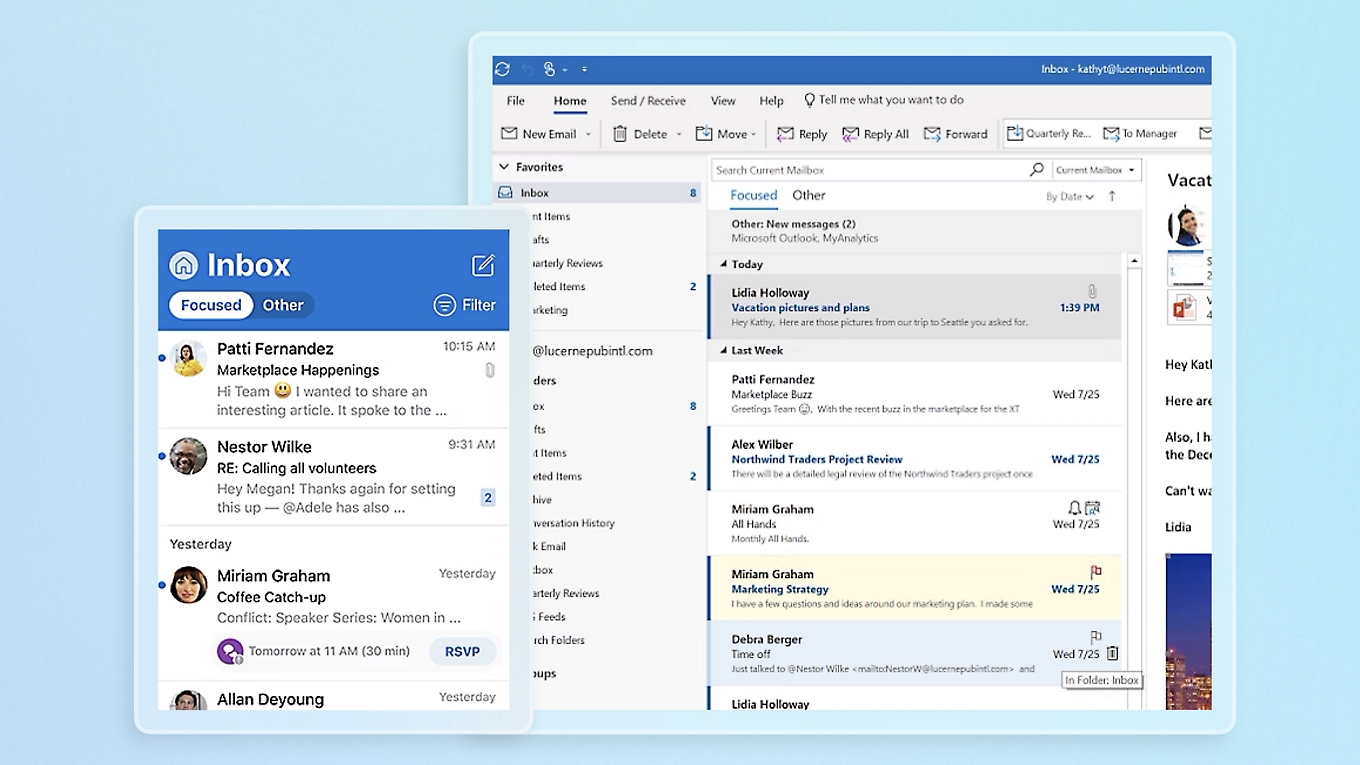
To fully understand how to change this default formatting, it is helpful to know that Outlook relies entirely on HTML to structure and display the contents of your outgoing and incoming messages. HTML is the foundational code used across the internet to build web pages and format digital text. Because Outlook interprets this exact code to render the visual elements of your emails, altering the appearance of specific items like hyperlink styles requires a basic understanding of how to manipulate this underlying structure. The process of modifying these styles might sound highly technical at first, but it essentially revolves around applying a very simple styling rule to the exact piece of text you want to change, ensuring your email looks exactly the way you envisioned.
When you begin to compose a new message or create a custom email signature, the email client automatically generates all the necessary background code for any hyperlink you choose to insert. Typically, this background code starts with what is known as an anchor tag, which identifies the destination web address for the reader. If you were to look directly at the raw code using an editor, it would appear as a standard link tag pointing to your chosen webpage, looking something like the standard anchor reference code. To successfully remove the line beneath the text, you must intervene in this automatic formatting process by introducing a specific stylistic command directly into that anchor tag. This coding method is known in web design as inline styling, which involves applying very specific design rules directly to a single element without affecting the rest of the text in your document.
The specific design command used to eliminate the line under a hyperlink is a cascading style sheet property called text decoration. By setting this exact property to none within the code of your link, you clearly instruct the email client to strip away the default line that usually appears automatically. In practice, this means you append a style attribute directly to the anchor tag, effectively overriding the standard visual behavior programmed into the software. This small but crucial adjustment ensures that the text remains fully clickable and functional for the recipient, but it seamlessly blends into the broader aesthetic design of your email message.
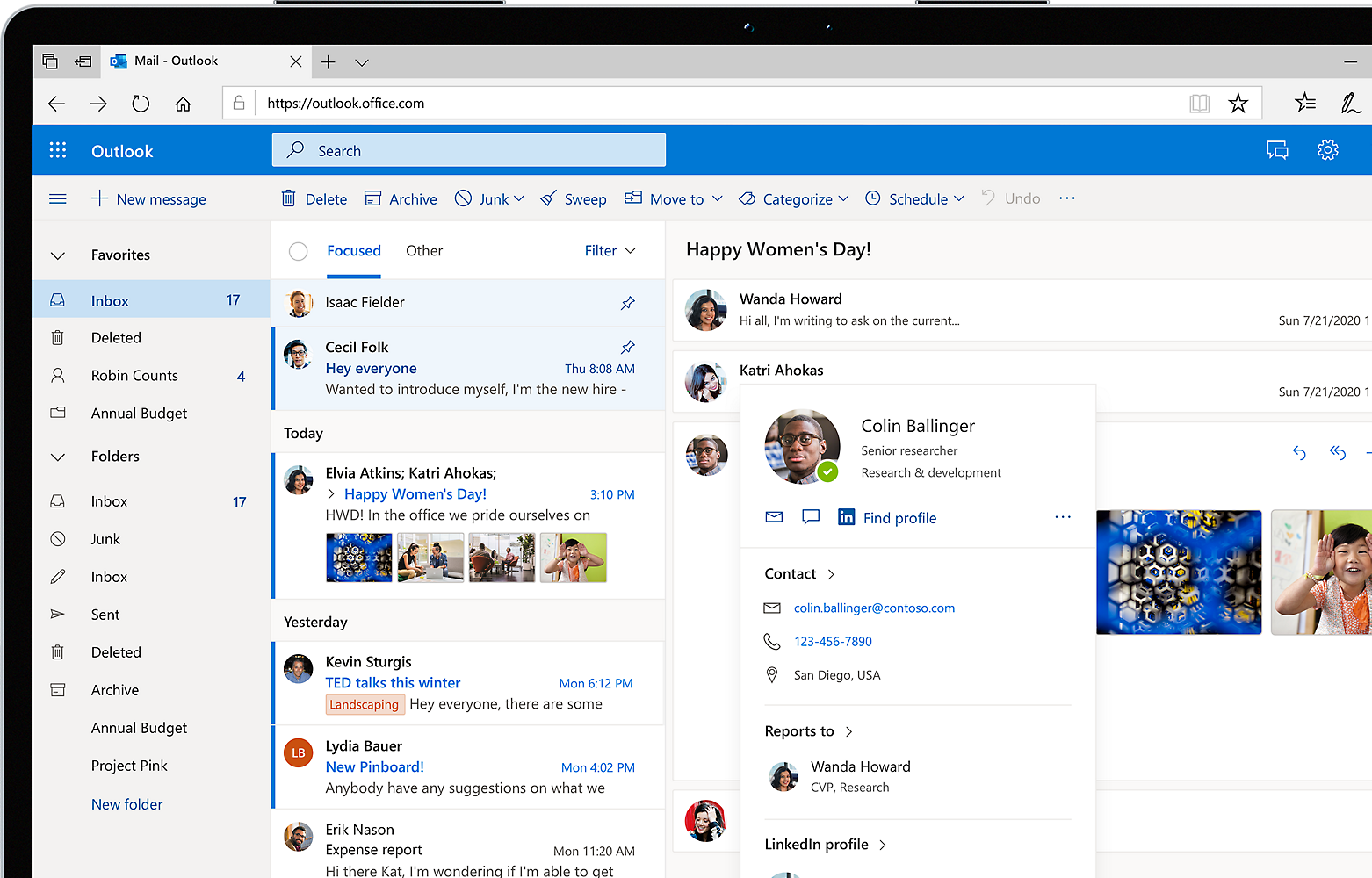
For everyday users who are composing emails directly within the standard software interface, editing raw code is not always directly accessible or convenient. However, the software provides built-in text formatting tools that effectively replicate this underlying coding process behind the scenes. By simply highlighting the hyperlinked text with your cursor, navigating to the formatting options located on the main ribbon at the top of the screen, and manually deselecting the underline button, you apply the exact same stylistic change without ever needing to touch the raw HTML code. Alternatively, you can modify the default style settings for all hyperlinks within your current message to save time. By accessing the styles menu, right-clicking the specific hyperlink style, and modifying its core properties, you can permanently remove the text decoration for every single link you create during that specific drafting session.
For those professionals who design much more complex, automated email campaigns using external HTML editors before importing them into the email client, manually adding the inline style is by far the most reliable approach. Because different email platforms and applications use various rendering engines to display code, applying the styling directly to the individual link guarantees that the formatting remains consistent. This ensures the email looks perfect regardless of whether the recipient is opening the message using a desktop application, a mobile phone app, or a web-based client. This high level of visual precision is especially important for corporate communications, where brand consistency and professional presentation are top priorities.
While improving the aesthetic quality of your messages is definitely a valid goal, it is also highly important to carefully consider the overall usability and accessibility of your emails. Removing the traditional visual cues that explicitly denote a clickable link means you must provide an alternative way for your readers to easily identify the interactive text. Relying strategically on color is the most common and effective solution to this problem. Choosing a distinct, brand-aligned color that perfectly stands out from your regular paragraph text ensures that your recipients can still easily navigate your message without confusion. Some designers also choose to make the linked text bold, adding an extra layer of visibility and emphasis without resorting to the traditional, sometimes cluttered line underneath.
Ultimately, customizing the appearance of your links is a relatively simple yet highly effective way to elevate the professionalism and polish of your digital correspondence. Whether you are simply tweaking a personal email signature for your daily messages or completely overhauling a company-wide newsletter template for thousands of subscribers, taking control of these small design elements allows you to create a much more cohesive and visually satisfying experience for your readers. By understanding the straightforward relationship between the visual user interface and the underlying code, you can confidently format your messages to meet your exact stylistic preferences and branding guidelines.